1
2
3
4
5
6
7
8
9
10
11
12
13
14
15
16
17
18
19
20
21
22
23
24
25
26
27
28
29
30
31
32
33
34
35
36
37
38
39
40
41
42
43
44
45
46
47
48
49
50
51
52
53
54
55
56
57
58
59
60
61
62
63
64
65
66
67
68
69
70
71
72
73
74
75
76
77
78
79
80
81
82
83
84
85
86
87
88
89
90
91
92
93
94
95
96
97
98
99
100
101
102
103
104
105
106
107
108
109
110
111
112
113
114
115
116
117
118
119
120
121
122
123
124
125
126
127
128
129
130
131
132
133
134
135
136
137
138
139
140
141
142
143
144
145
146
147
148
149
150
151
152
153
154
155
156
157
158
159
160
161
162
163
164
165
166
167
168
169
170
171
172
173
174
175
176
177
178
179
180
181
182
183
184
185
186
187
188
189
190
191
192
193
194
195
196
197
198
199
200
201
202
203
204
205
206
207
208
209
210
211
212
213
214
215
216
217
218
219
220
221
222
223
224
225
226
227
228
229
230
231
232
233
234
235
236
237
238
239
240
241
242
243
244
245
246
247
248
249
250
251
252
253
254
255
256
257
258
259
260
261
262
263
264
265
266
267
268
269
270
271
272
273
274
275
276
277
278
279
280
281
282
283
284
285
286
287
288
289
290
291
292
293
294
295
296
297
298
299
300
301
302
303
304
305
306
307
308
309
310
311
312
313
314
315
316
317
318
319
320
321
322
323
324
325
326
327
328
329
330
331
332
333
334
335
336
337
338
339
340
341
342
343
344
345
346
347
348
349
350
351
352
353
354
355
356
357
358
359
360
361
362
363
364
365
366
367
368
369
370
371
372
373
374
375
376
377
378
379
380
381
382
383
384
385
386
387
388
389
390
391
392
393
394
395
396
397
398
399
400
401
402
403
404
405
406
407
408
409
410
411
412
413
414
415
416
417
418
419
420
421
422
423
424
425
426
427
428
429
430
431
432
433
434
435
436
437
438
439
440
441
442
443
444
445
446
447
448
449
450
451
452
453
454
455
456
457
458
459
460
461
462
463
464
465
466
467
468
469
470
471
472
473
474
475
476
477
478
479
480
481
482
483
484
485
486
487
488
489
490
491
492
493
494
495
496
497
498
499
500
501
502
503
504
505
506
507
508
509
510
511
512
513
514
515
516
517
518
519
520
521
522
523
524
525
526
527
528
529
530
531
532
533
534
|
[English](/README.md) | [Chinese](/README.zh.md) | [Español](/README.es_ES.md)
<p align="center"><a href="#"><img src="./media/3X-UI.png" alt="Image"></a></p>
**An Advanced Web Panel • Built on Xray Core**
[](https://github.com/MHSanaei/3x-ui/releases)
[](#)
[](#)
[](#)
[](https://www.gnu.org/licenses/gpl-3.0.en.html)
> **Disclaimer:** This project is only for personal learning and communication, please do not use it for illegal purposes, please do not use it in a production environment
**If this project is helpful to you, you may wish to give it a**:star2:
<p align="left">
<a href="https://buymeacoffee.com/mhsanaei" target="_blank">
<img src="./media/buymeacoffe.png" alt="Image">
</a>
</p>
- USDT (TRC20): `TXncxkvhkDWGts487Pjqq1qT9JmwRUz8CC`
- MATIC (polygon): `0x41C9548675D044c6Bfb425786C765bc37427256A`
- LTC (Litecoin): `ltc1q2ach7x6d2zq0n4l0t4zl7d7xe2s6fs7a3vspwv`
## Install & Upgrade
```
bash <(curl -Ls https://raw.githubusercontent.com/mhsanaei/3x-ui/master/install.sh)
```
## Install Custom Version
To install your desired version, add the version to the end of the installation command. e.g., ver `v2.3.13`:
```
bash <(curl -Ls https://raw.githubusercontent.com/mhsanaei/3x-ui/master/install.sh) v2.3.13
```
## SSL Certificate
<details>
<summary>Click for SSL Certificate details</summary>
### ACME
To manage SSL certificates using ACME:
1. Ensure your domain is correctly resolved to the server.
2. Run the `x-ui` command in the terminal, then choose `SSL Certificate Management`.
3. You will be presented with the following options:
- **Get SSL:** Obtain SSL certificates.
- **Revoke:** Revoke existing SSL certificates.
- **Force Renew:** Force renewal of SSL certificates.
### Certbot
To install and use Certbot:
```sh
apt-get install certbot -y
certbot certonly --standalone --agree-tos --register-unsafely-without-email -d yourdomain.com
certbot renew --dry-run
```
### Cloudflare
The management script includes a built-in SSL certificate application for Cloudflare. To use this script to apply for a certificate, you need the following:
- Cloudflare registered email
- Cloudflare Global API Key
- The domain name must be resolved to the current server through Cloudflare
**How to get the Cloudflare Global API Key:**
1. Run the `x-ui` command in the terminal, then choose `Cloudflare SSL Certificate`.
2. Visit the link: [Cloudflare API Tokens](https://dash.cloudflare.com/profile/api-tokens).
3. Click on "View Global API Key" (see the screenshot below):

4. You may need to re-authenticate your account. After that, the API Key will be shown (see the screenshot below):

When using, just enter your `domain name`, `email`, and `API KEY`. The diagram is as follows:

</details>
## Manual Install & Upgrade
<details>
<summary>Click for manual install details</summary>
#### Usage
1. To download the latest version of the compressed package directly to your server, run the following command:
```sh
ARCH=$(uname -m)
case "${ARCH}" in
x86_64 | x64 | amd64) XUI_ARCH="amd64" ;;
i*86 | x86) XUI_ARCH="386" ;;
armv8* | armv8 | arm64 | aarch64) XUI_ARCH="arm64" ;;
armv7* | armv7) XUI_ARCH="armv7" ;;
armv6* | armv6) XUI_ARCH="armv6" ;;
armv5* | armv5) XUI_ARCH="armv5" ;;
s390x) echo 's390x' ;;
*) XUI_ARCH="amd64" ;;
esac
wget https://github.com/MHSanaei/3x-ui/releases/latest/download/x-ui-linux-${XUI_ARCH}.tar.gz
```
2. Once the compressed package is downloaded, execute the following commands to install or upgrade x-ui:
```sh
ARCH=$(uname -m)
case "${ARCH}" in
x86_64 | x64 | amd64) XUI_ARCH="amd64" ;;
i*86 | x86) XUI_ARCH="386" ;;
armv8* | armv8 | arm64 | aarch64) XUI_ARCH="arm64" ;;
armv7* | armv7) XUI_ARCH="armv7" ;;
armv6* | armv6) XUI_ARCH="armv6" ;;
armv5* | armv5) XUI_ARCH="armv5" ;;
s390x) echo 's390x' ;;
*) XUI_ARCH="amd64" ;;
esac
cd /root/
rm -rf x-ui/ /usr/local/x-ui/ /usr/bin/x-ui
tar zxvf x-ui-linux-${XUI_ARCH}.tar.gz
chmod +x x-ui/x-ui x-ui/bin/xray-linux-* x-ui/x-ui.sh
cp x-ui/x-ui.sh /usr/bin/x-ui
cp -f x-ui/x-ui.service /etc/systemd/system/
mv x-ui/ /usr/local/
systemctl daemon-reload
systemctl enable x-ui
systemctl restart x-ui
```
</details>
## Install with Docker
<details>
<summary>Click for Docker details</summary>
#### Usage
1. **Install Docker:**
```sh
bash <(curl -sSL https://get.docker.com)
```
2. **Clone the Project Repository:**
```sh
git clone https://github.com/MHSanaei/3x-ui.git
cd 3x-ui
```
3. **Start the Service:**
```sh
docker compose up -d
```
**OR**
```sh
docker run -itd \
-e XRAY_VMESS_AEAD_FORCED=false \
-v $PWD/db/:/etc/x-ui/ \
-v $PWD/cert/:/root/cert/ \
--network=host \
--restart=unless-stopped \
--name 3x-ui \
ghcr.io/mhsanaei/3x-ui:latest
```
4. **Update to the Latest Version:**
```sh
cd 3x-ui
docker compose down
docker compose pull 3x-ui
docker compose up -d
```
5. **Remove 3x-ui from Docker:**
```sh
docker stop 3x-ui
docker rm 3x-ui
cd --
rm -r 3x-ui
```
</details>
## Recommended OS
- Ubuntu 20.04+
- Debian 11+
- CentOS 8+
- Fedora 36+
- Arch Linux
- Parch Linux
- Manjaro
- Armbian
- AlmaLinux 9+
- Rocky Linux 9+
- Oracle Linux 8+
- OpenSUSE Tubleweed
## Supported Architectures and Devices
<details>
<summary>Click for Supported Architectures and devices details</summary>
Our platform offers compatibility with a diverse range of architectures and devices, ensuring flexibility across various computing environments. The following are key architectures that we support:
- **amd64**: This prevalent architecture is the standard for personal computers and servers, accommodating most modern operating systems seamlessly.
- **x86 / i386**: Widely adopted in desktop and laptop computers, this architecture enjoys broad support from numerous operating systems and applications, including but not limited to Windows, macOS, and Linux systems.
- **armv8 / arm64 / aarch64**: Tailored for contemporary mobile and embedded devices, such as smartphones and tablets, this architecture is exemplified by devices like Raspberry Pi 4, Raspberry Pi 3, Raspberry Pi Zero 2/Zero 2 W, Orange Pi 3 LTS, and more.
- **armv7 / arm / arm32**: Serving as the architecture for older mobile and embedded devices, it remains widely utilized in devices like Orange Pi Zero LTS, Orange Pi PC Plus, Raspberry Pi 2, among others.
- **armv6 / arm / arm32**: Geared towards very old embedded devices, this architecture, while less prevalent, is still in use. Devices such as Raspberry Pi 1, Raspberry Pi Zero/Zero W, rely on this architecture.
- **armv5 / arm / arm32**: An older architecture primarily associated with early embedded systems, it is less common today but may still be found in legacy devices like early Raspberry Pi versions and some older smartphones.
- **s390x**: This architecture is commonly used in IBM mainframe computers and offers high performance and reliability for enterprise workloads.
</details>
## Languages
- English
- Farsi
- Chinese
- Russian
- Vietnamese
- Spanish
- Indonesian
- Ukrainian
- Turkish
## Features
- System Status Monitoring
- Search within all inbounds and clients
- Dark/Light theme
- Supports multi-user and multi-protocol
- Supports protocols, including VMESS, VLESS, Trojan, Shadowsocks, Dokodemo-door, Socks, HTTP, wireguard
- Supports XTLS native Protocols, including RPRX-Direct, Vision, REALITY
- Traffic statistics, traffic limit, expiration time limit
- Customizable Xray configuration templates
- Supports HTTPS access panel (self-provided domain name + SSL certificate)
- Supports One-Click SSL certificate application and automatic renewal
- For more advanced configuration items, please refer to the panel
- Fixes API routes (user setting will be created with API)
- Supports changing configs by different items provided in the panel.
- Supports export/import database from the panel
## Default Panel Settings
<details>
<summary>Click for default settings details</summary>
### Username & Password & webbasepath:
These will be generated randomly if you skip modifying them.
- **Port:** the default port for panel is `2053`
### Database Management:
You can conveniently perform database Backups and Restores directly from the panel.
- **Database Path:**
- `/etc/x-ui/x-ui.db`
### Web Base Path
1. **Reset Web Base Path:**
- Open your terminal.
- Run the `x-ui` command.
- Select the option to `Reset Web Base Path`.
2. **Generate or Customize Path:**
- The path will be randomly generated, or you can enter a custom path.
3. **View Current Settings:**
- To view your current settings, use the `x-ui settings` command in the terminal or `View Current Settings` in `x-ui`
### Security Recommendation:
- For enhanced security, use a long, random word in your URL structure.
**Examples:**
- `http://ip:port/*webbasepath*/panel`
- `http://domain:port/*webbasepath*/panel`
</details>
## WARP Configuration
<details>
<summary>Click for WARP configuration details</summary>
#### Usage
**For versions `v2.1.0` and later:**
WARP is built-in, and no additional installation is required. Simply turn on the necessary configuration in the panel.
**For versions before `v2.1.0`:**
1. Run the `x-ui` command in the terminal, then choose `WARP Management`.
2. You will see the following options:
- **Account Type (free, plus, team):** Choose the appropriate account type.
- **Enable/Disable WireProxy:** Toggle WireProxy on or off.
- **Uninstall WARP:** Remove the WARP application.
3. Configure the settings as needed in the panel.
</details>
## IP Limit
<details>
<summary>Click for IP limit details</summary>
#### Usage
**Note:** IP Limit won't work correctly when using IP Tunnel.
- **For versions up to `v1.6.1`:**
- The IP limit is built-in to the panel
**For versions `v1.7.0` and newer:**
To enable the IP Limit functionality, you need to install `fail2ban` and its required files by following these steps:
1. Run the `x-ui` command in the terminal, then choose `IP Limit Management`.
2. You will see the following options:
- **Change Ban Duration:** Adjust the duration of bans.
- **Unban Everyone:** Lift all current bans.
- **Check Logs:** Review the logs.
- **Fail2ban Status:** Check the status of `fail2ban`.
- **Restart Fail2ban:** Restart the `fail2ban` service.
- **Uninstall Fail2ban:** Uninstall Fail2ban with configuration.
3. Add a path for the access log on the panel by setting `Xray Configs/log/Access log` to `./access.log` then save and restart xray.
- **For versions before `v2.1.3`:**
- You need to set the access log path manually in your Xray configuration:
```sh
"log": {
"access": "./access.log",
"dnsLog": false,
"loglevel": "warning"
},
```
- **For versions `v2.1.3` and newer:**
- There is an option for configuring `access.log` directly from the panel.
</details>
## Telegram Bot
<details>
<summary>Click for Telegram bot details</summary>
#### Usage
The web panel supports daily traffic, panel login, database backup, system status, client info, and other notification and functions through the Telegram Bot. To use the bot, you need to set the bot-related parameters in the panel, including:
- Telegram Token
- Admin Chat ID(s)
- Notification Time (in cron syntax)
- Expiration Date Notification
- Traffic Cap Notification
- Database Backup
- CPU Load Notification
**Reference syntax:**
- `30 \* \* \* \* \*` - Notify at the 30s of each point
- `0 \*/10 \* \* \* \*` - Notify at the first second of each 10 minutes
- `@hourly` - Hourly notification
- `@daily` - Daily notification (00:00 in the morning)
- `@weekly` - weekly notification
- `@every 8h` - Notify every 8 hours
### Telegram Bot Features
- Report periodic
- Login notification
- CPU threshold notification
- Threshold for Expiration time and Traffic to report in advance
- Support client report menu if client's telegram username added to the user's configurations
- Support telegram traffic report searched with UUID (VMESS/VLESS) or Password (TROJAN) - anonymously
- Menu based bot
- Search client by email ( only admin )
- Check all inbounds
- Check server status
- Check depleted users
- Receive backup by request and in periodic reports
- Multi language bot
### Setting up Telegram bot
- Start [Botfather](https://t.me/BotFather) in your Telegram account:

- Create a new Bot using /newbot command: It will ask you 2 questions, A name and a username for your bot. Note that the username has to end with the word "bot".

- Start the bot you've just created. You can find the link to your bot here.

- Enter your panel and config Telegram bot settings like below:

Enter your bot token in input field number 3.
Enter the user ID in input field number 4. The Telegram accounts with this id will be the bot admin. (You can enter more than one, Just separate them with ,)
- How to get Telegram user ID? Use this [bot](https://t.me/useridinfobot), Start the bot and it will give you the Telegram user ID.

</details>
## API Routes
<details>
<summary>Click for API routes details</summary>
#### Usage
- `/login` with `POST` user data: `{username: '', password: ''}` for login
- `/panel/api/inbounds` base for following actions:
| Method | Path | Action |
| :----: | ---------------------------------- | ------------------------------------------- |
| `GET` | `"/list"` | Get all inbounds |
| `GET` | `"/get/:id"` | Get inbound with inbound.id |
| `GET` | `"/getClientTraffics/:email"` | Get Client Traffics with email |
| `GET` | `"/getClientTrafficsById/:id"` | Get client's traffic By ID |
| `GET` | `"/createbackup"` | Telegram bot sends backup to admins |
| `POST` | `"/add"` | Add inbound |
| `POST` | `"/del/:id"` | Delete Inbound |
| `POST` | `"/update/:id"` | Update Inbound |
| `POST` | `"/clientIps/:email"` | Client Ip address |
| `POST` | `"/clearClientIps/:email"` | Clear Client Ip address |
| `POST` | `"/addClient"` | Add Client to inbound |
| `POST` | `"/:id/delClient/:clientId"` | Delete Client by clientId\* |
| `POST` | `"/updateClient/:clientId"` | Update Client by clientId\* |
| `POST` | `"/:id/resetClientTraffic/:email"` | Reset Client's Traffic |
| `POST` | `"/resetAllTraffics"` | Reset traffics of all inbounds |
| `POST` | `"/resetAllClientTraffics/:id"` | Reset traffics of all clients in an inbound |
| `POST` | `"/delDepletedClients/:id"` | Delete inbound depleted clients (-1: all) |
| `POST` | `"/onlines"` | Get Online users ( list of emails ) |
\*- The field `clientId` should be filled by:
- `client.id` for VMESS and VLESS
- `client.password` for TROJAN
- `client.email` for Shadowsocks
- [API Documentation](https://documenter.getpostman.com/view/16802678/2s9YkgD5jm)
- [<img src="https://run.pstmn.io/button.svg" alt="Run In Postman" style="width: 128px; height: 32px;">](https://app.getpostman.com/run-collection/16802678-1a4c9270-ac77-40ed-959a-7aa56dc4a415?action=collection%2Ffork&source=rip_markdown&collection-url=entityId%3D16802678-1a4c9270-ac77-40ed-959a-7aa56dc4a415%26entityType%3Dcollection%26workspaceId%3D2cd38c01-c851-4a15-a972-f181c23359d9)
</details>
## Environment Variables
<details>
<summary>Click for environment variables details</summary>
#### Usage
| Variable | Type | Default |
| -------------- | :--------------------------------------------: | :------------ |
| XUI_LOG_LEVEL | `"debug"` \| `"info"` \| `"warn"` \| `"error"` | `"info"` |
| XUI_DEBUG | `boolean` | `false` |
| XUI_BIN_FOLDER | `string` | `"bin"` |
| XUI_DB_FOLDER | `string` | `"/etc/x-ui"` |
| XUI_LOG_FOLDER | `string` | `"/var/log"` |
Example:
```sh
XUI_BIN_FOLDER="bin" XUI_DB_FOLDER="/etc/x-ui" go build main.go
```
</details>
## Preview


## A Special Thanks to
- [alireza0](https://github.com/alireza0/)
## Acknowledgment
- [Iran v2ray rules](https://github.com/chocolate4u/Iran-v2ray-rules) (License: **GPL-3.0**): _Enhanced v2ray/xray and v2ray/xray-clients routing rules with built-in Iranian domains and a focus on security and adblocking._
- [Vietnam Adblock rules](https://github.com/vuong2023/vn-v2ray-rules) (License: **GPL-3.0**): _A hosted domain hosted in Vietnam and blocklist with the most efficiency for Vietnamese._
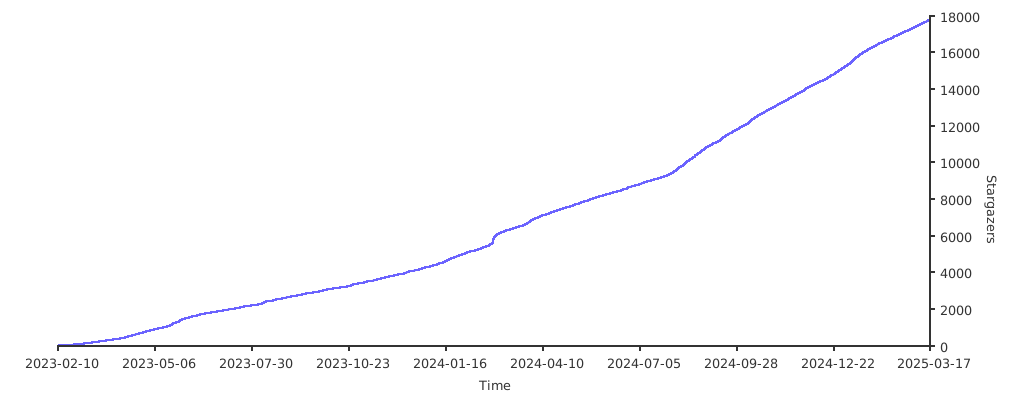
## Stargazers over Time
[](https://starchart.cc/MHSanaei/3x-ui)
|
